
Product
How it works
Three jobs on the same cards — rehearse a script, run the room, run a show night — then the card itself, improvised scenes and live prompts, and the room's own network, which is why none of it depends on the venue's internet.
One
Rehearse a script
Load it, cast it
Import the script into Composer — pasted text, a PDF with a text layer, a Word file or Fountain — and it becomes a scene: one role per character, one line per speech. On the iPad, choose Rehearse a script, pick the scene, hand out the cards and cast the parts.
Each actor's line, and the cue before it
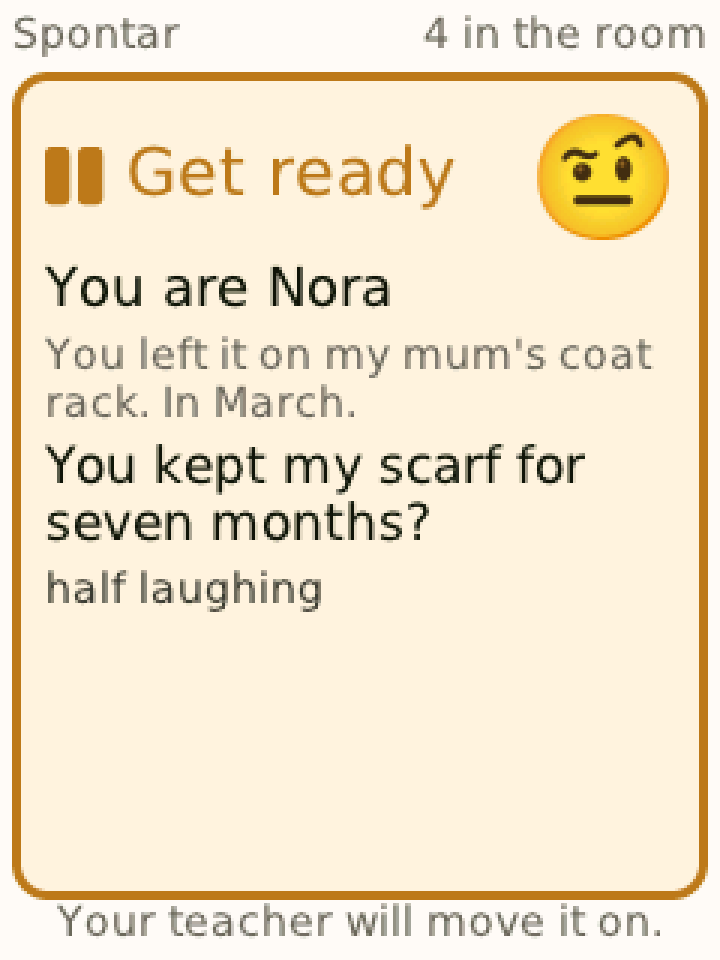
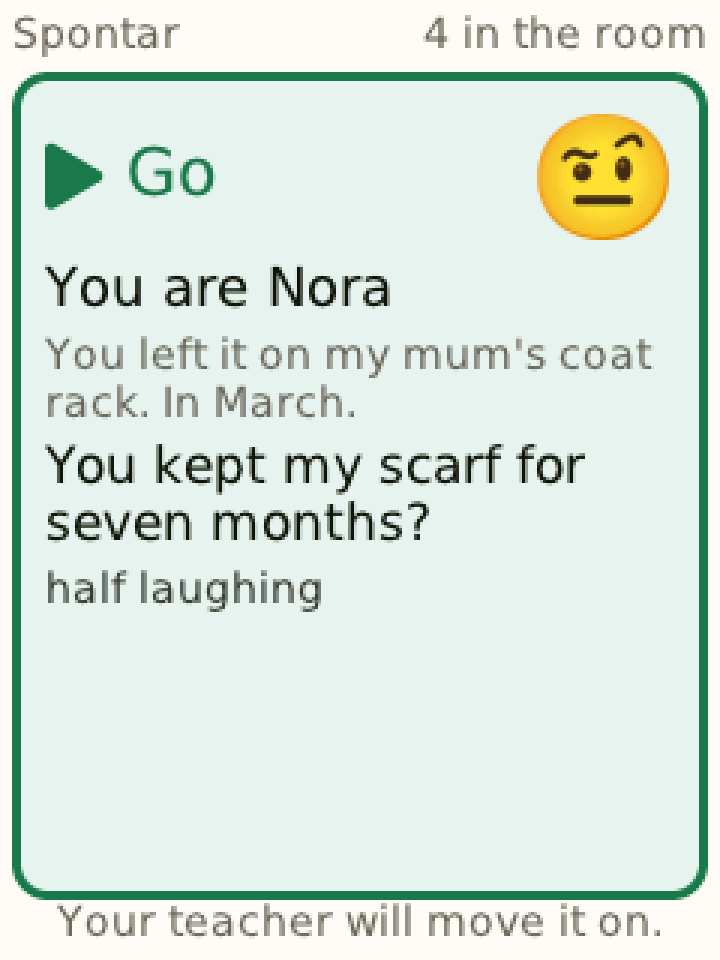
Each actor's card shows the partner's last words in grey — the cue — and the actor's own line beneath. Nothing else: not the scene, not the other actor's lines, not what is coming. The next actor gets two short buzzes and an amber card while the other actor is still speaking; when the line is theirs, one long buzz and green. A long line is split into pages, and the actor taps for the next.
You move the scene on with Next. If you allow it, the actor who is on can move it on from their own card instead.
Full, first letters, or blank — per actor
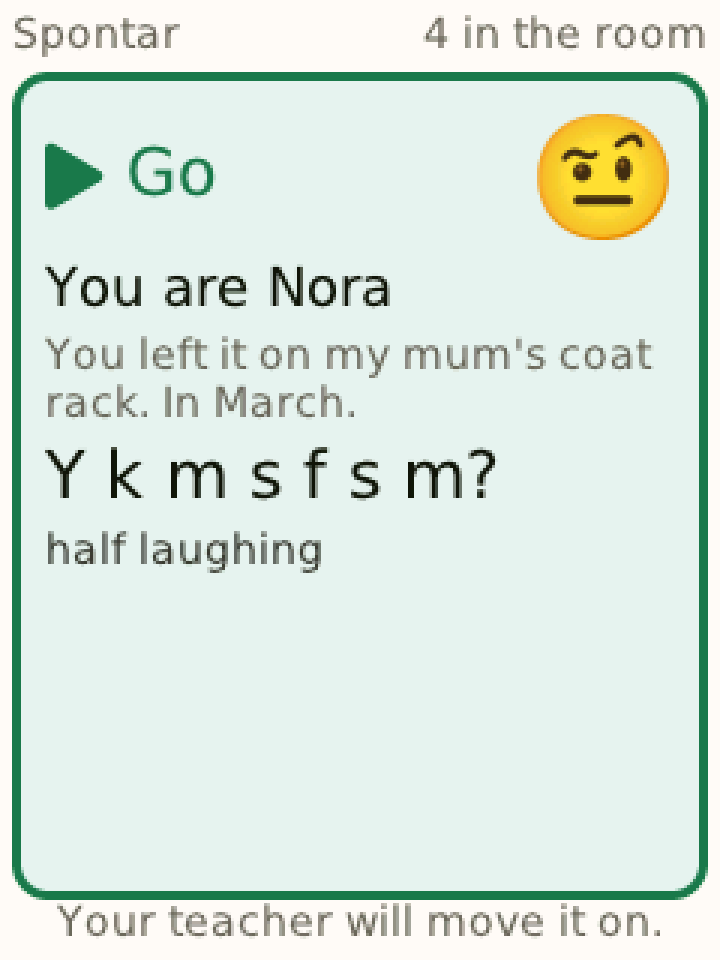
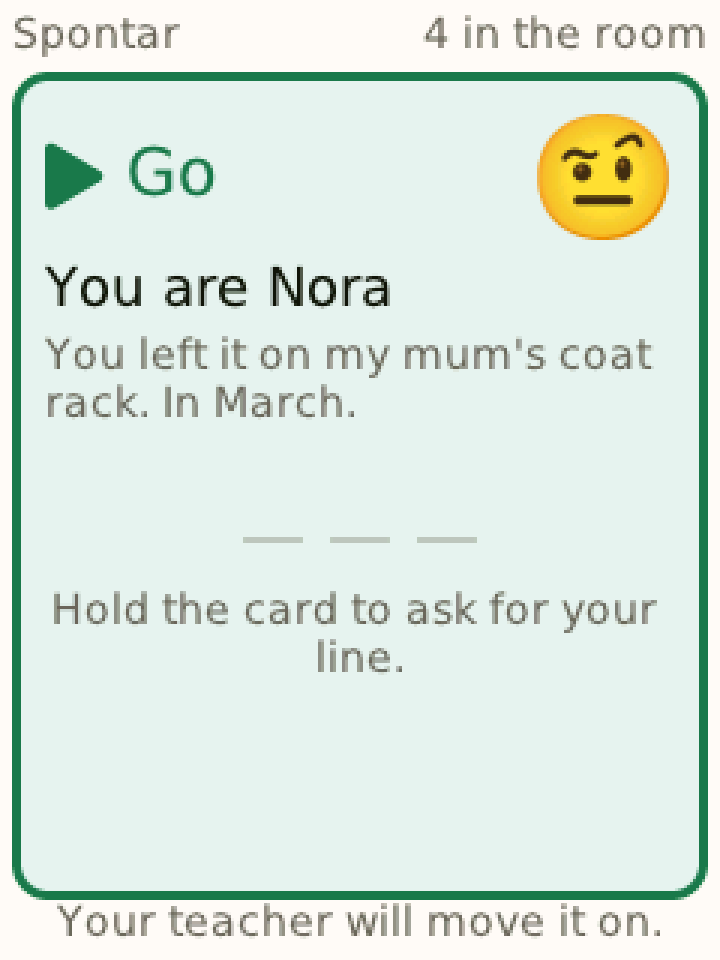
For every actor you choose what their card shows: the line in full, the first letter of each word, or nothing but the cue. You set it before the run and change it any time during it — one actor who is nearly off book can rehearse blank beside a partner who still needs the words.
A silent prompt, when you decide
Rehearse · The last train
StopTHE CAST
Lea Nora
Asked for the lineJonas Sam
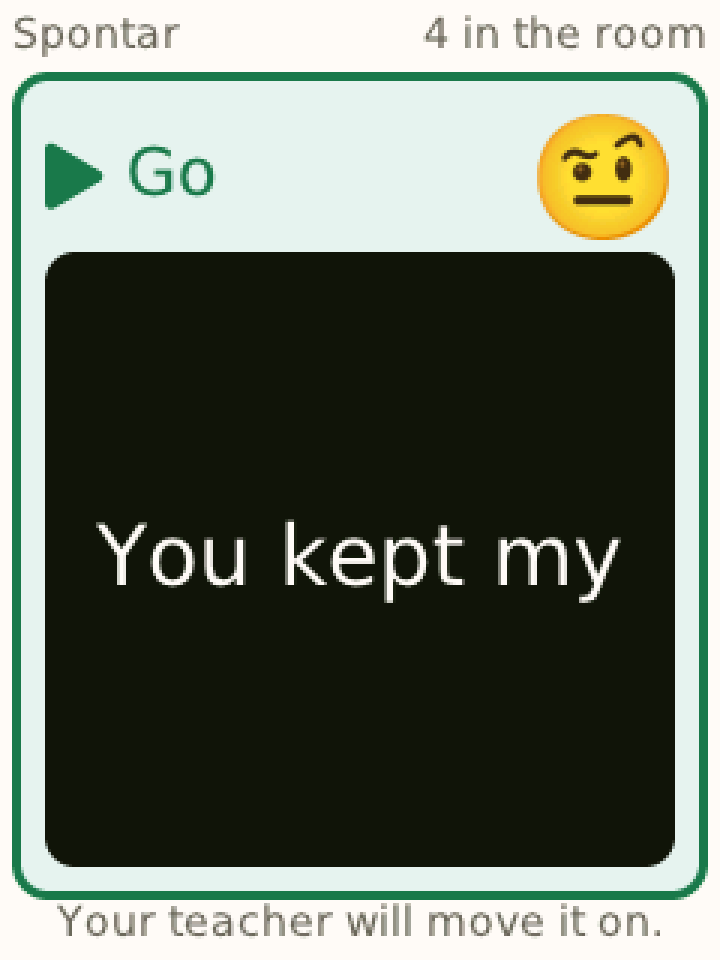
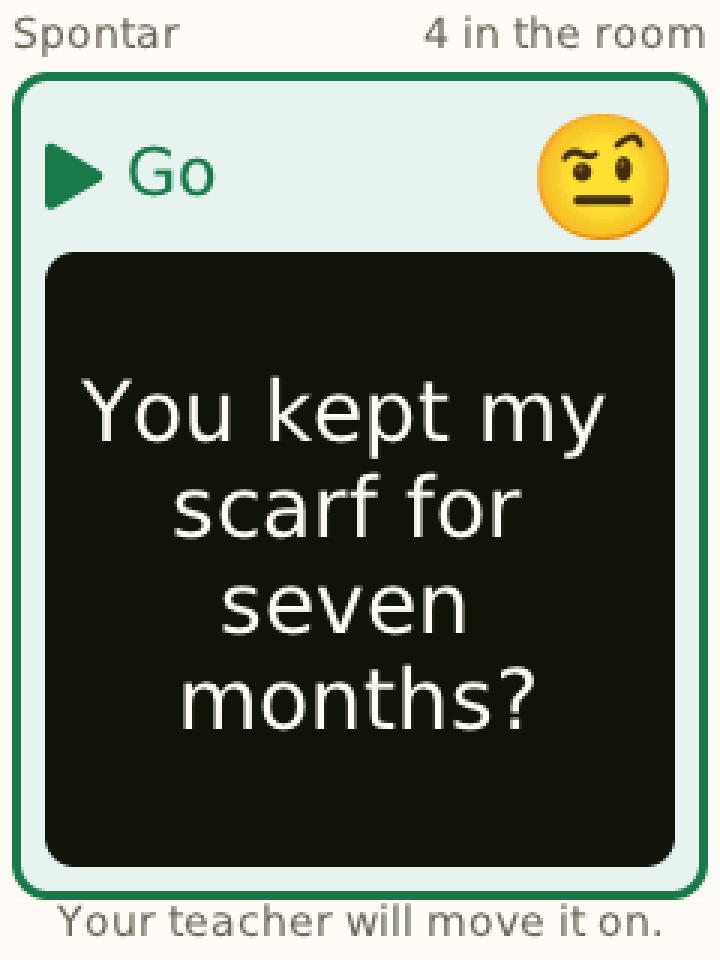
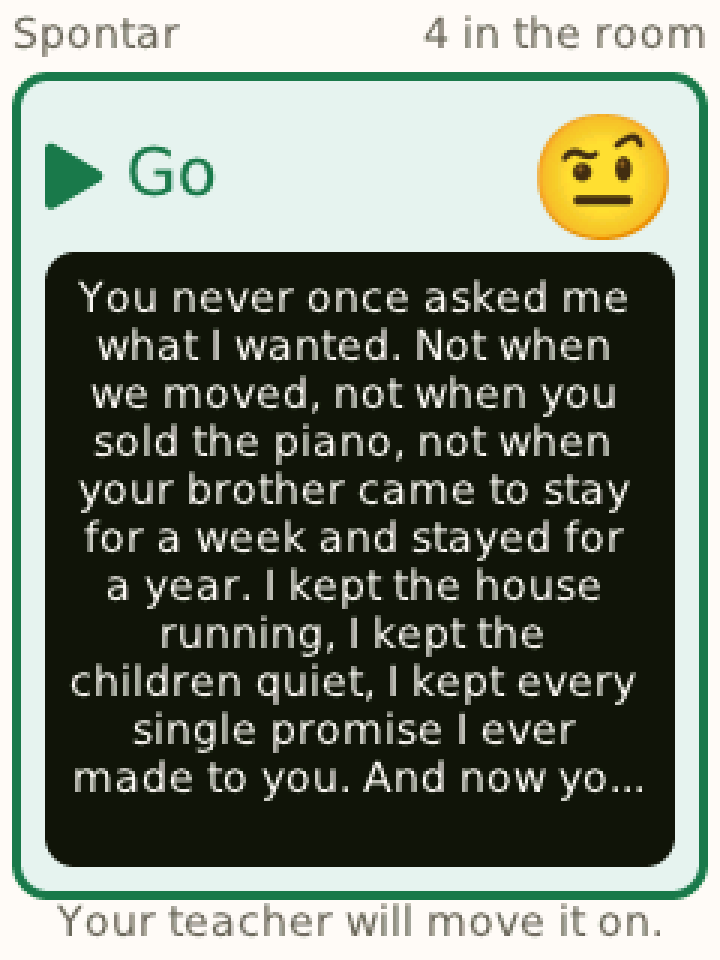
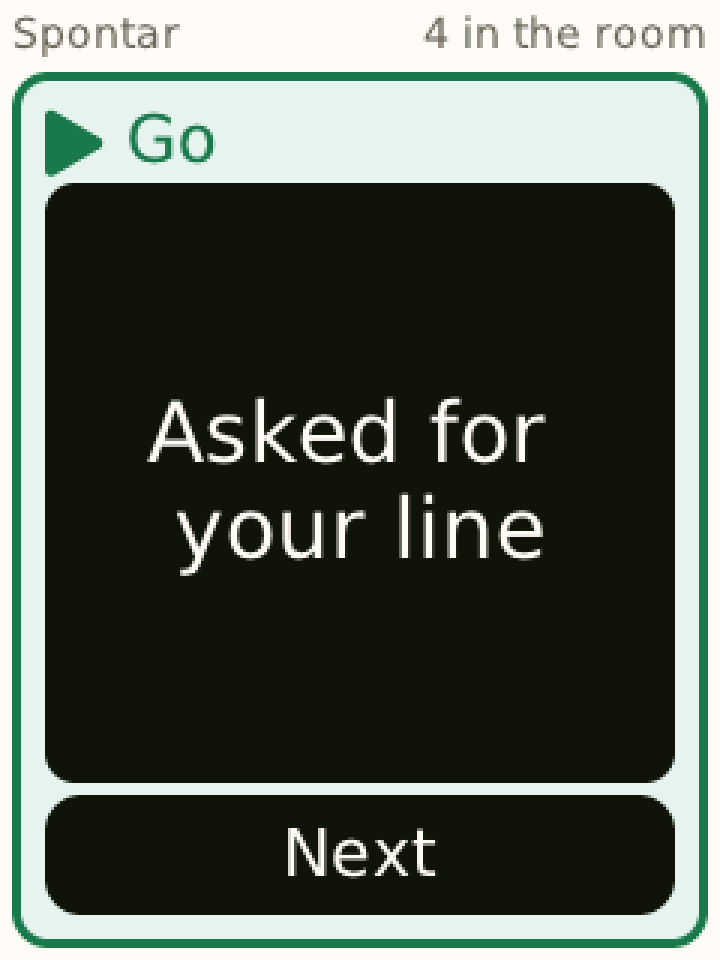
When an actor dries, you tap Word, Line or Speech on their row. The words appear on that actor's card alone, in large type over the line, without a buzz — the next words for two seconds, the line for four, the whole speech until the actor taps it away. Nobody else's card changes, and nobody hears a thing.
The card does not detect a dry. It has no way to, and it should not: whether a pause is a dry or a choice is your call. An actor who knows they have lost it can hold the card for a moment to ask; their row on your iPad shows the request, and you decide. If you prefer, requests can be answered automatically with the line.
Prompting is the teacher's, and it switches off. With Prompting off for a scene, the buttons are disabled and nothing is sent; the actors can still ask, and you see it.
The record: where the lines went
After each run the iPad shows the dries per actor — "Nora · 2 (lines 4, 12)" — and Backstage keeps them with the lesson: who dried, on which line, whether they asked, were prompted, or both. A dry is counted once per line. It is information for the next rehearsal, for the teacher who gave the lesson; it is not a score, and no actor sees it.
Two
Run the room
For any class with no scene — scene study in pairs, exercises, an improv class. Choose Run the room, hand out the cards, and the iPad keeps the turns.
Choose a group size and tap Propose: the iPad suggests the next pair or group from who has been up least and who has worked together least, and says why — "Sam hasn't been up; hasn't worked with Lea". Tap names to change it. Warn buzzes their cards twice, privately: "Next: you + Sam". Go buzzes them once, long: "You're on", and starts the clock. At your time limit the cards on stage get a short buzz — "Time" — and nobody else's.
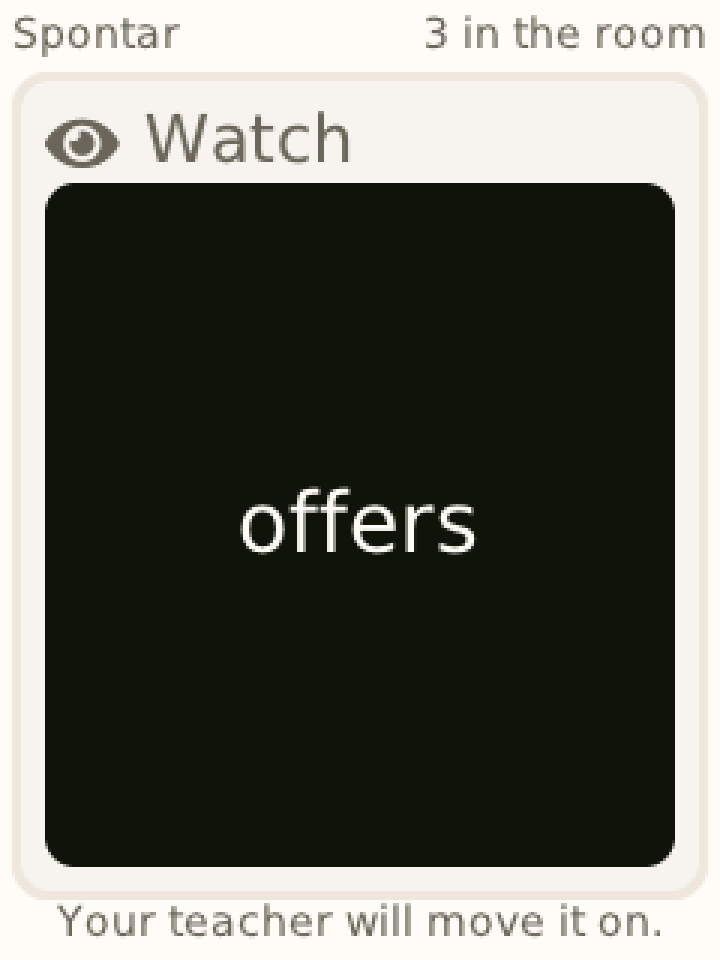
Give the people watching something to watch for: type a word — offers, status, where — and it appears on every card not on stage. End round records it. Afterwards: who was up, how often, and who worked with whom.
Three
Show night
Choose Show night and build the running order on the iPad: each act with a title, its performers and its minutes; reorder as the night changes. A booth note per act — "blackout on button" — stays on your screen.
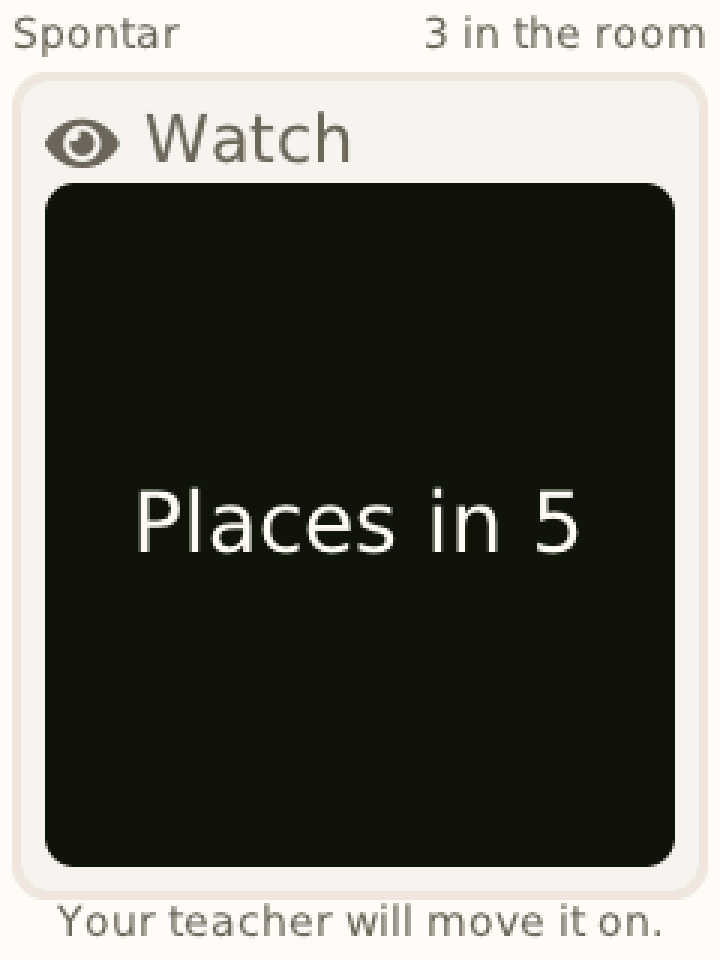
Places buzzes the next act's performers: "Places in 5". Go starts the act's clock; "2 minutes" and "Wrap it up" buzz the act on stage, and only them. End act records it.
For a jam, put the names in the hat — from the class or typed — and Draw them into groups of the size you choose. Each drawn card is told its group, and the groups become acts. Afterwards: which acts played, and for how long.
Four
The card: one part, and the notice on top
A card shows one thing at a time: the holder's own part, when it is theirs. Amber with two short buzzes when they are next, green with one long buzz when they are on, and nothing to read while somebody else is. For a line, the three display modes — full, first letters, blank — decide how much of it is there.
Over that sits the notice: large white words on black, covering the body of the card for a few seconds. A prompt is a notice and arrives without a buzz; so are "Next: you + Sam", "Time", "Places in 5" and the watchers' word, each with its own buzz or none. It clears by itself or when the card is tapped, and the card underneath is as it was.
This is enforced in what is sent, not only in what is shown. The iPad sends each card only its own view, so no card can display another actor's part. The card's own words — "Go", "Get ready", "Hold the card to ask for your line" — follow the language of the teacher's app: English, German or French.
Five
Improvised scenes and live prompts
A scene does not have to be a script. A beat can be a situation and a feeling for a player to improvise from — short enough to read at a glance, eighty characters at most — or a picture, cropped in Composer to the card's 4:3 box. One scene can mix lines, situations and pictures, and any beat can carry one of 64 icons. You run it with Play a scene and one button, Next.
Beat 6 of 10
Stop the scene- 5 Ben The customer You mention, a little too loudly, that you know the store manager.
- 6 Ada The clerk You offer to call the manager over yourself, right now. calm
- 7 Ben The customer You backtrack fast, insisting that won't be necessary after all. flustered
You are The clerk
You offer to call the manager over yourself, right now.
calm
Live mode needs no scene at all. Choose a player, type a prompt — with a feeling and an icon if you like — and either play it now or add it to a queue you can reorder while the current one plays. The card behaves as in a written scene: two short buzzes when a player is next, one long buzz when it is theirs, and nobody else sees it. At the end, Spontar asks whether to keep it as a draft in Composer. Pictures are not available in live prompts.
Six
The room's own network
The kit carries its own router. You choose the mode before the lesson: over the internet, or just this room. Just this room runs over the kit's network with your iPad as the host. Opening the lesson needs a connection — that is when the iPad fetches the scenes and their pictures — but once it is open, nothing is sent anywhere until you are back on the internet, and then the lesson record uploads once.
The mode does not change under you. A lesson that quietly fell back to offline would leave half the room connected to one thing and half to another, and the first anyone would know is an actor whose card stopped moving.
Cards prove who they are without the internet: each one holds a key it generated itself and signs a challenge from your iPad. The same check runs online and off — one implementation, so the two cannot drift apart.
Afterwards
What is kept, and for how long
Two kinds of thing, deliberately separate. What happened in a lesson — who was there, who played which role, where the prompts and line requests fell, the rounds of a class, the acts of a show night, any scores you chose to give — is visible to the teacher who gave it, and is deleted after a year by default.
How the institution used the product — how many lessons, which scenes, how long — is kept and shown to whoever runs the institution. It contains no student, by construction: no name, no identifier, no per-student row.
They are never joined. That separation is what lets an owner see usage without seeing a student.